Showing posts with label Exchange. Show all posts
Monday, 2 November 2015
SBS 2008 BPA 'log file for the Windows SharePoint Services configuration database is getting large' LinkId=159745
We were running out of disk space on a Small Business Server 2008, giving us Exchange back pressure problems halting email delivery. The SBS2008 Best Practices Analyzer (BPA) reports that 'The log file for the Windows SharePoint Services configuration database is getting large'. For information about how to reduce the size of the log file, see the Knowledge Base at http://go.microsoft.com/fwlink/?LinkId=159745
Unfortunately that link is now dead, 'This page doesn't exist' and searching MS fails to show the relevant info to fix the problem.
The Microsoft FixIt however is still available for an automatic fix, use this link
http://go.microsoft.com/?linkid=9774317
Gave me an extra 8GB of disk space within seconds.
Tuesday, 2 June 2015
123-reg auto renew SSL .crt certificate won't load in ISA Server, no key, can't export .pfx
We've got an Exchange Server 2003 as part of an SBS 2003 setup, just hanging in on its last couple of months before it gets upgraded - just before the July 2015 sunset on security updates. You best contact redleg.net if you haven't planned upgrading from Server 2003 yet.
The replacement Alpha SSL certificate came as a plain text email, to save as a .crt file and import. Loaded the MMC, added the Certificates option to manage the Local Computer certificate store, and easily imported into the Personal section. From there, head to IIS Manager > Default Website > Properties > Directory Security > Server Certificate and change to the updated certificate.
Easy enough, however on the SBS 2003 Premium, running ISA server as the firewall, you also need to update the certificate in the ISA Outlook web publishing rule too. Right-lick on the rule > Properties > Listener > Properties > Preferences > SSL > Select
But the new certificate doesn't appear on the list. Thats because it needs to be in PFX format, which also includes the private key. This comes from the original certificate request. If you try and export that certificate in PFX format its greyed out, because the private key is missing. There's a quick and easy way to fix the certificate, which doesn't involve exporting or trying to recombine the certificate and key with openssl (yes tried all that!)
Look at the new certificate details and find the serial number - should eb something like a 36 character hex number. Now start a CMD prompt and use the command
certutil -repairstore my "serialno"
Then go back to ISA to change the certificate attached to the web publishing rule listener and your new certificate should be on the list.
(I also did a restart of IIS Admin service - not sure whether that was required or not - let me know in the comments below)
The replacement Alpha SSL certificate came as a plain text email, to save as a .crt file and import. Loaded the MMC, added the Certificates option to manage the Local Computer certificate store, and easily imported into the Personal section. From there, head to IIS Manager > Default Website > Properties > Directory Security > Server Certificate and change to the updated certificate.
Easy enough, however on the SBS 2003 Premium, running ISA server as the firewall, you also need to update the certificate in the ISA Outlook web publishing rule too. Right-lick on the rule > Properties > Listener > Properties > Preferences > SSL > Select
But the new certificate doesn't appear on the list. Thats because it needs to be in PFX format, which also includes the private key. This comes from the original certificate request. If you try and export that certificate in PFX format its greyed out, because the private key is missing. There's a quick and easy way to fix the certificate, which doesn't involve exporting or trying to recombine the certificate and key with openssl (yes tried all that!)
Look at the new certificate details and find the serial number - should eb something like a 36 character hex number. Now start a CMD prompt and use the command
certutil -repairstore my "serialno"
Then go back to ISA to change the certificate attached to the web publishing rule listener and your new certificate should be on the list.
(I also did a restart of IIS Admin service - not sure whether that was required or not - let me know in the comments below)
Wednesday, 8 April 2015
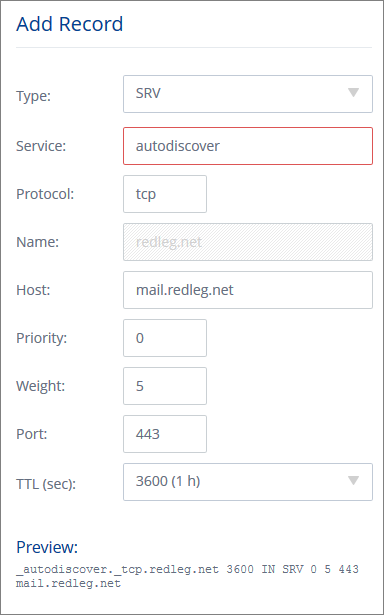
At last! 1&1 SRV DNS records - with invalid characters warning when creating _autodiscover for Exchange
| 1and1 finally add SRV records to the DNS |
So login to 1and1 and go to the new Domain Centre, choose your domain and click Edit DNS Settings. At the bottom under 'TXT, SPF and SRV Records' click Add Record. It looks like this picture.
The standard advice is to create a record with this info:
Service: _autodiscover
Protocol: _tcp
Port Number: 443
Host: remote.yourdomain.com
However if you add _autodiscover you'll get an error ... This field contains invalid characters. The following characters are valid: 'a-Z', '0-9', '*', '-', '+'.
The trick is to remove the underscore at the start for both autodiscover and tcp. If you look at the preview at the bottom, 1and1 are automatically adding the underscore.
Also note you need to click Add and then click Save, to create the record.
Thursday, 5 February 2015
Unable to send email from SBS 2008 Task Scheduler when Event Viewer Audit Failure, error 2147746321
I wanted an SBS 2008 server (which is essentially Windows Server 2008) to email me if there was a login failure recorded. So if someone types the wrong password, or more importantly, starts trying to guess a password, I'll get a notification.
The Event Viewer should let you attach a task to a particular event id, in this case Audit Failure Event ID 4625. Find one in the event viewer (using Filter Current Log > keywords > Audit Failure) then right-click and Attach Task.
Except no matter how many combinations of user/SYSTEM account, Run whether user is logged in or not, highest privileges and then messing with the from field and the smtp server (including a second receive connector on a different port), localhost vs ip vs 127.0.0.1 ... it just wouldn't send an email. I couldn't even see in the Transport Roles verbose logging what was happening. The only hint was in the Task properties under history which showed error 2147746321. That didn't Google to anything that fixed the problem.
So I gave up on that plan.
And decided to attach a script instead, dead simple, ran first time. So open notepad and paste this script in
Oh and you'll need to update the script with your server, from email address and to email address.
Note that the sending port is the default 25 in this example which doesn't allow internal smtp by default. You might want to create another Receive Connector in Exchange Management Console > Server Config > Hub Transport using another port, eg 25025 and allow anonymous internal email via that instead.
The Event Viewer should let you attach a task to a particular event id, in this case Audit Failure Event ID 4625. Find one in the event viewer (using Filter Current Log > keywords > Audit Failure) then right-click and Attach Task.
Except no matter how many combinations of user/SYSTEM account, Run whether user is logged in or not, highest privileges and then messing with the from field and the smtp server (including a second receive connector on a different port), localhost vs ip vs 127.0.0.1 ... it just wouldn't send an email. I couldn't even see in the Transport Roles verbose logging what was happening. The only hint was in the Task properties under history which showed error 2147746321. That didn't Google to anything that fixed the problem.
So I gave up on that plan.
And decided to attach a script instead, dead simple, ran first time. So open notepad and paste this script in
Save the file as "security-warning.vbs" into somewhere handy like c:\users\administrator and change the task action from send email to run a program, point it at that script.
Set objMail = CreateObject("CDO.Message")
Set objConf = CreateObject("CDO.Configuration")
Set objFlds = objConf.Fields
objFlds.Item("http://schemas.microsoft.com/cdo/configuration/sendusing") = 2
objFlds.Item("http://schemas.microsoft.com/cdo/configuration/smtpserver") = "SERVER1"
objFlds.Item("http://schemas.microsoft.com/cdo/configuration/smtpserverport") = 25
objFlds.Update
objMail.Configuration = objConf
objMail.From = "administrator@acmecleaning.co.uk"
objMail.To = "support@redleg"
objMail.Subject = "Security audit failure (Acme Cleaning)"
objMail.TextBody = "Please check the security log on SERVER1 at Acme Cleaning."
objMail.Send
Set objFlds = Nothing
Set objConf = Nothing
Set objMail = Nothing
Oh and you'll need to update the script with your server, from email address and to email address.
Note that the sending port is the default 25 in this example which doesn't allow internal smtp by default. You might want to create another Receive Connector in Exchange Management Console > Server Config > Hub Transport using another port, eg 25025 and allow anonymous internal email via that instead.
Labels:
Event Viewer,
Exchange,
SBS2008
Monday, 15 December 2014
Exporting / copying results from Exchange 2007 Message Tracking troubleshooting assistant
I was trying to track down some specific invoice emails that had allegedly been sent a couple of weeks earlier. Its easy enough to fire up the Message Tracking troubleshooting assistant from the Exchange 2007 Management Console, just look in the Toolbox section. Its a bit like the old Message Tracking Center in Exchange System Manager from the 2003 version.
You specify your message criteria and date range and it shows you all the matching email records. However you really need to get it into Excel to start filtering and sorting the data usefully, especially when it returns 100s of matching emails. However there isn't an obvious copy or export option.
The trick is to click Go Back and look at the shell command that was generated, at the bottom. You can see in this screenshot the equivalent shell command is
get-messagetrackinglog -EventID "SEND" -MessageSubject "invoice" -Start "16/11/2014 07:58:00" -End "28/11/2014 21:08:00"
Copy that line, then start Exchange Management Shell and paste the command (You need to click the shell icon top left then choose the Edit submenu). Before you hit enter to run the command, paste the following to the end of the line:
| export-csv c:\windows\temp\results.csv
(the | is the Shifted backslash symbol just by Z on the UK keyboard, its the pipe command)
That will create an Excel friendly report in the Windows\Temp directory
You specify your message criteria and date range and it shows you all the matching email records. However you really need to get it into Excel to start filtering and sorting the data usefully, especially when it returns 100s of matching emails. However there isn't an obvious copy or export option.
get-messagetrackinglog -EventID "SEND" -MessageSubject "invoice" -Start "16/11/2014 07:58:00" -End "28/11/2014 21:08:00"
Copy that line, then start Exchange Management Shell and paste the command (You need to click the shell icon top left then choose the Edit submenu). Before you hit enter to run the command, paste the following to the end of the line:
| export-csv c:\windows\temp\results.csv
(the | is the Shifted backslash symbol just by Z on the UK keyboard, its the pipe command)
That will create an Excel friendly report in the Windows\Temp directory
Friday, 19 September 2014
Can't Empty Deleted Items in Outlook, until synchronization with server is complete
Using Outlook with Microsoft Exchange. It looks like a damaged email in Outlook, stuck in the Deleted Items offline folder, which then fails to complete the Empty Deleted Items action. You get this error message:
"Outlook is synchronizing local changes made to items in this folder. You cannot remove this folder until the synchronization with the server is complete."
You can remove the problem item by right-clicking on the Deleted Items folder, then Properties, and choosing the Clear Offline Items button. Press F9 to run a sync
"Outlook is synchronizing local changes made to items in this folder. You cannot remove this folder until the synchronization with the server is complete."
You can remove the problem item by right-clicking on the Deleted Items folder, then Properties, and choosing the Clear Offline Items button. Press F9 to run a sync
Thursday, 22 September 2011
IE 9 won't open or save attachment in OWA webmail on SBS
That new locked down IE9 is giving me hell on the SBS servers. Latest was to stop me saving a licence file on a remote server I was logged into. No errors, just wouldn't open or save or save as.
Messed with security xones, trusted certificates, activex filtering
Found the answer on Andy Grogan's blog
Internet Explorer > Internet Options > Advanced
scroll most of the way down the list, and untick this option
Do not save encrypted pages to disk option
Labels:
Exchange,
Exchange 2010,
SBS2003,
SBS2008,
SBS2011
Sunday, 12 June 2011
SBS 2003 mailbox limit and warning over 2GB
Its not often that I don't find an answer to an SBS admin question on Daniel Petri's excellent website. He's got a post about loading up ADSIEDIT to set a mailbox limit warning higher than 2GB. Basically the standard Exchange Server Manager won't edit the values higher than 2GB so you have to dive into obscure Active Directory attributes to load a bigger value.
At one particular client that didn't work and he kept getting daily warnings, which in turn meant I got a daily prompt ;-) There is a global setting that affects all mailboxes fortunately and it worked at this particular client.
I tracked down an article to set the global mailbox limit higher than 2GB. Use ADSIEDIT but drill down to the attributes at this location:
At one particular client that didn't work and he kept getting daily warnings, which in turn meant I got a daily prompt ;-) There is a global setting that affects all mailboxes fortunately and it worked at this particular client.
I tracked down an article to set the global mailbox limit higher than 2GB. Use ADSIEDIT but drill down to the attributes at this location:
Configuration [YOUR_SERVER.YOUR_DOMAIN.london]
CN=Configuration,DC=YOUR DOMAN,DC=london
CN=ServicesCN=Microsoft Exchange
CN=YOUR_DOMAIN
CN=Administrative Groups
CN=first administrative group
CN=Servers
CN=YOUR_SERVERNAME
CN=InformationStore
CN=First Storage Group
CN=Mailbox Store (YOUR_SERVERNAME)
Friday, 23 January 2009
Email address distribution missing in public folders
Just setup an email address attached to an Exchange public folder. So incoming emails can be shared between several people but it also acts as a master list, that way you can see what has been actioned already.
You can also add the Send As permission in the Active Directory for that folder, so staff can change the email address that the message is sent from. You then need to enable the From field in the new message box. Also make sure the address is visible in the global address list and not hidden.
We noticed that incoming emails stored in the public folder didn't show the email distribution if anyone had been cc'd in. This was tracked down to the format being IPM.Post not IPM.Note. You can add a registry setting to force all new emails to store as Note, and therefore display the email distribution:
HKLM\SYSTEM\CurrentControlSet\Services\MSExchangeIS\servername\public-folder-id\
"Incoming defaults to IPM.Note"=dword:00000001
Restart the Exchange Info Store.
You can also add the Send As permission in the Active Directory for that folder, so staff can change the email address that the message is sent from. You then need to enable the From field in the new message box. Also make sure the address is visible in the global address list and not hidden.
We noticed that incoming emails stored in the public folder didn't show the email distribution if anyone had been cc'd in. This was tracked down to the format being IPM.Post not IPM.Note. You can add a registry setting to force all new emails to store as Note, and therefore display the email distribution:
HKLM\SYSTEM\CurrentControlSet\Services\MSExchangeIS\servername\public-folder-id\
"Incoming defaults to IPM.Note"=dword:00000001
Restart the Exchange Info Store.
Subscribe to:
Posts (Atom)